Quickstart
Install a sign-in block and open it at /sign-in.
Last updated Aug 26, 2026
1. Preview
This guide uses Split sign-in page with image. This block is free, so you can preview and install it without an account.
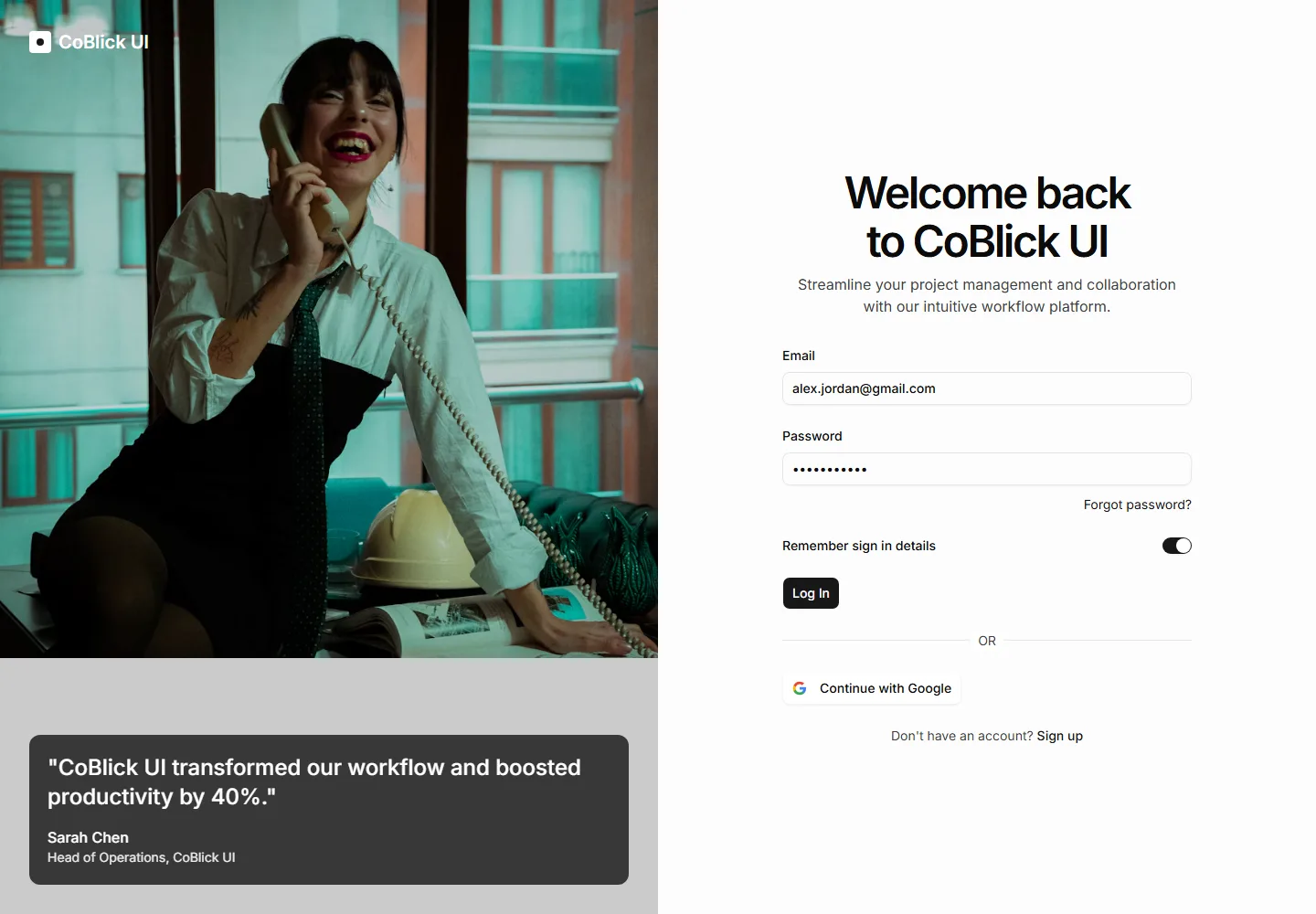

Open the full block page to compare desktop, tablet, and mobile previews, try dark mode, and use the form controls.
2. Run the dry run first, then install
Run the dry run from the folder that contains your app's components.json. It lists the planned changes without writing files.
npx shadcn@latest add https://coblick.com/r/application-login-split-with-image --dry-runWhat the command doesThe dry run lists the sign-in block, any missing UI files, and the packages it needs. It identifies potential conflicts before installation.
Install
npx shadcn@latest add https://coblick.com/r/application-login-split-with-image3. Add to a route
Create a route in your app and import the installed component. This example uses a Next.js App Router page at app/sign-in/page.tsx.
import SignInPage from "@/components/blocks/application/login/split-with-image";

export default function Page() {
  return <SignInPage />;
}
If your project uses a different router or import alias, keep the installed component where shadcn placed it and import it from your route.
At /sign-inStart the app and open /sign-in. You should see the two-column sign-in page. The image panel hides at smaller widths.
4. Connect authentication
The installed screen contains demo content. Finish these changes before using it with real users:
- Replace the sample brand, image, testimonial, and field values.
- Connect the form to your authentication flow and show its loading and error states.
- Connect the password-reset link, sign-up link, and social sign-in options.
- Test keyboard use, mobile width, and every theme your app supports.
Authentication is not includedThe block does not create user accounts or authenticate anyone. Your app supplies that behavior.
Open the block's implementation guide for its dependencies, integration points, customization options, and pre-launch checks. For a paid block, continue with Set up Pro access.