
Install your first CoBlick block
Preview a block, install it in your React app, then replace the example content and connect its interactions.
Last updated Aug 26, 2026
Prerequisites
- A React app that uses Tailwind CSS.
- A
components.jsonfile created by shadcn. - Commit or stash your work so installation changes are easy to review or undo.
If shadcn is not set up yet, follow the Install CoBlick blocks guide first.
Install
Step 1: Preview
Open the block at desktop, tablet, and mobile widths before installing it.
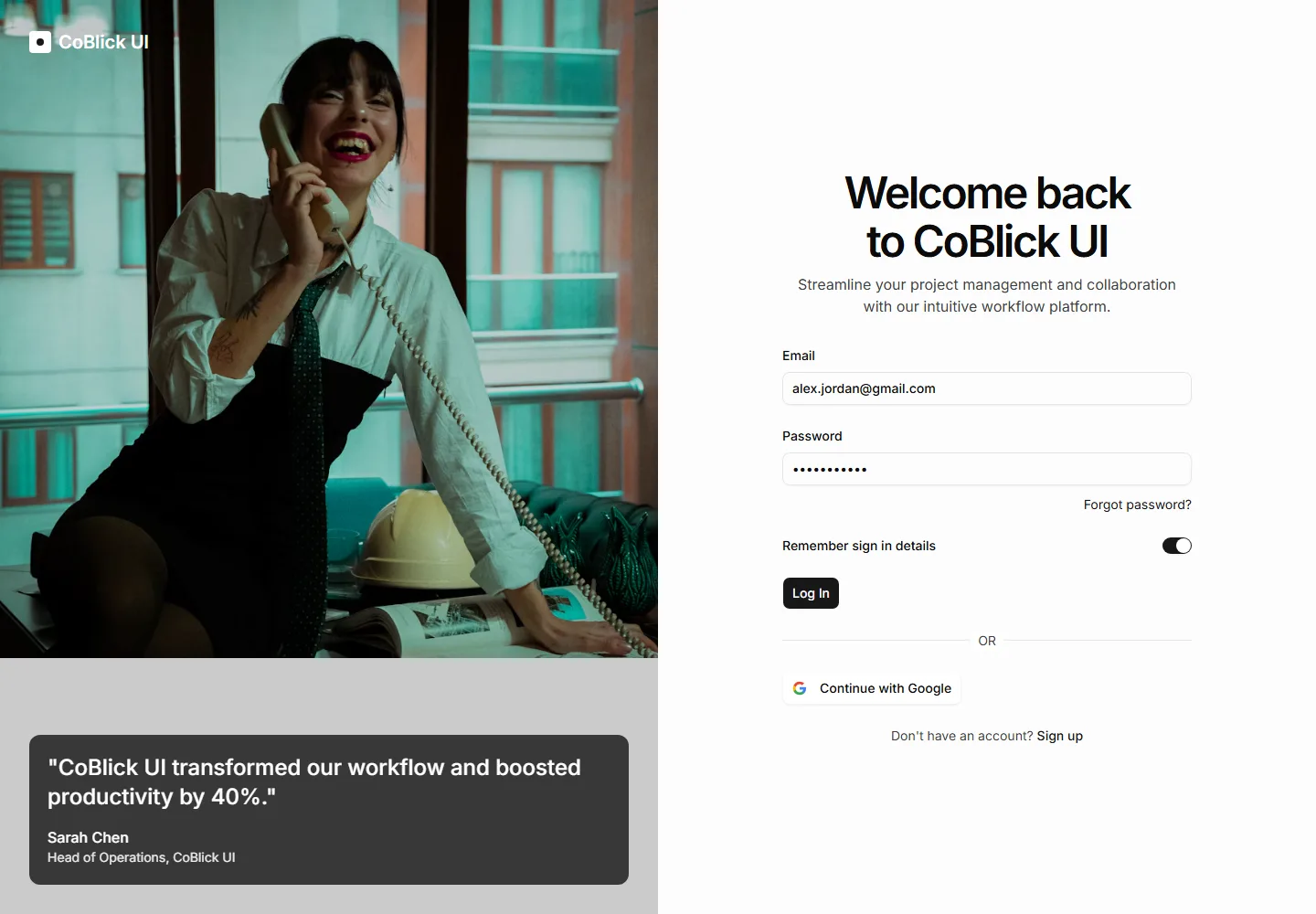

Step 2: Install
Run the command from the app folder that contains components.json.
Terminal
npx shadcn@latest add https://coblick.com/r/application-login-split-with-imageStep 3: Add to a route
Import the installed block from the route where it should appear.
app/sign-in/page.tsx
import SignInPage from "@/components/blocks/application/login/split-with-image";

export default function Page() {
  return <SignInPage />;
}
Connect authentication
The installed screen includes demo content. Replace it before the page goes in front of customers.
- Connect the form and buttons to your authentication, navigation, and form logic.
- Replace sample names, images, links, and field values.
- Add validation, submitting, authentication error, and success/redirect behavior.
- Check mobile width, keyboard use, and the color themes used by your app.
The implementation guide lists its dependencies, integration points, customization options, and pre-launch checks.
Next steps
Open the guide that matches what you need to do next.